


Now, making your viewing experience unique is easier than before. You can customize your IPTV EPG right on your Firestick. The Electronic Program Guide (EPG) is key for any IPTV service. It shows a detailed schedule of TV programs available.
By adjusting this guide to fit your tastes, you can make your viewing better.
With just a few steps, you can turn your Firestick into a smarter, easier-to-use entertainment center. This article will show you how to customize your IPTV EPG. This way, your Firestick will match your viewing habits perfectly.
By the end of this guide, you’ll enjoy a viewing experience that’s more tailored to you.
Understanding IPTV EPG and Its Importance on Firestick
An Electronic Program Guide (EPG) is key for finding channels and shows on IPTV on Firestick. It helps you see what’s on now and what’s coming up. This makes planning your TV time easier. The EPG is more than a list; it’s a tool that makes watching TV better.
What Is an Electronic Program Guide?
An Electronic Program Guide (EPG) is a guide on your screen. It shows scheduling information for TV programs. You can look at channels, read about shows, and set reminders for your favorites. It’s a big help for finding new shows and keeping up with your favorites.
Why Customizing Your EPG Matters
Customizing your EPG on Firestick makes watching TV better. You can pick your favorite channels, hide ones you don’t like, and change how it looks. This makes your IPTV experience smooth and fun.
Benefits of a Well-Organized EPG
A good EPG has many benefits:
- Easy Navigation: Find your favorite channels and shows quickly.
- Personalized Experience: Make the EPG fit your viewing style.
- Enhanced Viewing Experience: Enjoy a better IPTV experience.
- Time-Saving: Plan your TV time and set reminders to save time.
Understanding IPTV EPG and making it your own makes watching TV on Firestick more fun and personal.
Prerequisites for Customizing IPTV EPG on Firestick
To customize your IPTV EPG on Firestick, you need to meet some basic requirements. Having the right setup and information makes the process easier and more effective.
Required Hardware and Software
A compatible Firestick device is key for smooth IPTV app operation. Make sure your Firestick is updated to the latest version. You also need an IPTV app that supports EPG customization, like Tivimate or IPTV Smarters Pro.
IPTV Subscription Requirements
You need an active IPTV subscription for live TV and EPG access. Your provider should offer an M3U playlist or Xtream Codes API. Also, check if your subscription supports EPG.
EPG Source URL Information
You’ll need a valid EPG source URL for customization. This URL gives you the program guide data for your IPTV app. Make sure the EPG source is compatible with your provider and has the right channel info.
Meeting these requirements prepares you to customize your IPTV EPG on Firestick. This will improve your viewing experience with a well-organized program guide.
Best IPTV Apps for Firestick That Support EPG Customization
To make your IPTV experience on Firestick better, pick an app that lets you customize the EPG. Many IPTV apps are out there, each with features to tailor your Electronic Program Guide.
Tivimate IPTV Player
Tivimate IPTV Player is a top choice for Firestick users. It’s easy to use and has lots of options for EPG customization. You can upload your EPG data or use a URL from your IPTV provider.
Key Features:
- Supports multiple EPG sources
- Customizable EPG grid and layout
- Ability to import and export EPG data
IPTV Smarters Pro
IPTV Smarters Pro is another favorite for its advanced EPG customization. It gives a smooth viewing experience and works with many EPG sources.
Key Features:
- User-friendly interface for easy navigation
- Support for Xtream Codes API and M3U playlists
- EPG customization options, including time offset adjustments
Perfect Player IPTV
Perfect Player IPTV is great for a wide range of IPTV providers. It has strong EPG customization features and works well with Firestick.
Key Features:
- Customizable EPG grid and channel logos
- Support for multiple EPG sources and formats
- Ability to adjust EPG update intervals
OTT Navigator
OTT Navigator is packed with features for EPG customization. It’s easy to use and works with Firestick, offering lots of customization options.
Key Features:
- Customizable EPG layout and design
- Support for multiple IPTV providers
- Ability to create custom channel lists
Here’s a comparison of the key features of these IPTV apps:
| IPTV App | EPG Customization | Multiple EPG Sources | User Interface |
|---|---|---|---|
| Tivimate IPTV Player | Yes | Yes | User-friendly |
| IPTV Smarters Pro | Yes | Yes | Intuitive |
| Perfect Player IPTV | Yes | Yes | Customizable |
| OTT Navigator | Yes | Yes | User-friendly |
Choosing the right IPTV app for your Firestick lets you personalize your viewing experience. You can customize your Electronic Program Guide just the way you like it.
Installing Your Preferred IPTV App on Firestick
Installing your favorite IPTV app on Firestick is easy and makes streaming better. First, enable apps from unknown sources. Then, download and install your chosen app. Finally, set it up for the best performance.
Enabling Apps from Unknown Sources
To install IPTV apps, you must allow apps from unknown sources. Here’s how:
- Go to the Firestick home screen and navigate to ‘Settings’.
- Select ‘My Fire TV’ or ‘Device’ depending on your Firestick model.
- Choose ‘Developer options’.
- Turn on ‘Apps from Unknown Sources’.
Note: Be cautious when installing apps from unknown sources, as they may not be verified by Amazon.
Using Downloader App for Installation
The Downloader app is great for installing IPTV apps on Firestick. Here’s how to use it:
- Open the Firestick home screen and go to ‘Search’.
- Type ‘Downloader’ and select the app from the search results.
- Click ‘Download’ to install the Downloader app.
- Once installed, open Downloader and enter the URL of your IPTV app.
- Follow the on-screen instructions to complete the installation.
Installing Through Amazon Appstore
Some IPTV apps are on the Amazon Appstore. To install an IPTV app this way:
- Go to the Firestick home screen and navigate to ‘Apps’.
- Select ‘Categories’ or ‘Search’ to find your IPTV app.
- Choose the app you want and click ‘Get’ or ‘Download’.
- Wait for the app to download and install.
Here’s a comparison of the installation methods:
| Installation Method | Ease of Use | App Availability |
|---|---|---|
| Downloader App | Easy | Wide range of apps |
| Amazon Appstore | Easy | Limited to approved apps |
By following these steps, you can easily install your preferred IPTV app on Firestick and enjoy a customized viewing experience.
Setting Up Your IPTV Service Before EPG Customization
Before you start with EPG customization, make sure your IPTV service is set up right on your Firestick. A well-configured IPTV service is key for smooth customization, including the Electronic Program Guide.
Adding M3U Playlist URL
The first thing to do is add the M3U playlist URL. Your IPTV service provider gives you this URL. It lists all channels and their streaming details. To add it, open your IPTV app, go to settings, and find the M3U playlist URL option. Enter the URL carefully to avoid mistakes.
Tips for adding M3U playlist URL:
- Make sure the URL is correct and active.
- Check if the URL needs a username and password for access.
- Some apps might ask you to restart after adding the URL.
Configuring Xtream Codes API
If your IPTV service uses Xtream Codes API, you need to set it up in your IPTV app. You’ll need to enter the API URL, username, and password given by your provider. You can find this in the app’s settings under Xtream Codes or API settings.
Note: Steps might differ based on your IPTV app. Check your app’s guide or contact your provider for help.
Verifying Channel List Import
After adding the M3U playlist URL or setting up Xtream Codes API, check if the channel list imports correctly. Make sure all your channels are there and there are no errors. This step confirms your IPTV service is ready for EPG customization.
Verification tips:
- Check if the channel list is complete.
- Ensure channel logos and names are correct.
- Test a few channels to see if they’re working.
How to Customize IPTV EPG on Firestick Using Tivimate
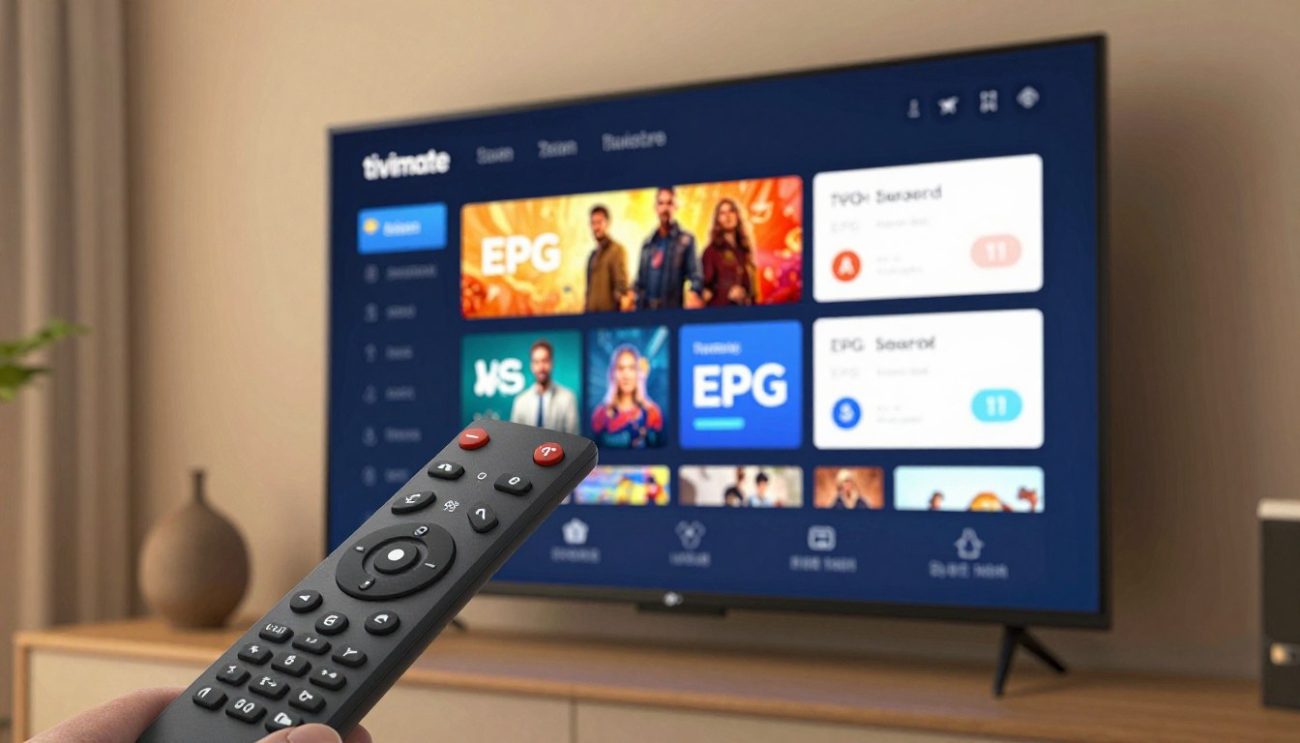
Customizing your IPTV EPG on Firestick with Tivimate is easy. This guide will show you how to access EPG settings, add an EPG source URL, set up an update schedule, and change display options.
Accessing EPG Settings in Tivimate
To customize your EPG, first, access the EPG settings in Tivimate. Open the Tivimate app on your Firestick. Then, go to the settings menu and find “EPG Settings” or “Guide Settings”. Here, you can adjust various EPG settings.
Adding EPG Source URL
Adding the EPG source URL is key to customizing your IPTV EPG. This URL gives your program guide its data. In the EPG settings, find the option to add or configure the EPG source URL. Enter the URL given by your IPTV service provider to get the EPG data. Make sure the URL is correct to avoid guide loading issues.
Configuring EPG Update Schedule
Tivimate lets you set how often your EPG data updates. You can pick from options like every few hours or daily. Setting the update schedule keeps your EPG current. To do this, go to the EPG settings, find “Update Schedule” or “Refresh Interval”, and choose your preferred frequency.
Customizing EPG Display Options
Customizing your EPG display can improve your viewing experience. Tivimate lets you change the layout, font size, and color scheme. You can adjust these settings to make your EPG easier to read and look better. Try different settings to find what you like best.
By following these steps, you can customize your IPTV EPG on Firestick with Tivimate. This makes your viewing experience more enjoyable and personalized.
Customizing EPG in IPTV Smarters Pro
To get the most out of your IPTV service on Firestick, customizing the EPG in IPTV Smarters Pro is key. IPTV Smarters Pro is a top IPTV app. It lets you customize your Electronic Program Guide (EPG).
Navigating to EPG Settings
Finding the EPG settings in IPTV Smarters Pro is easy. First, open IPTV Smarters Pro on your Firestick. Then, go to the settings menu. There, you can set up your EPG settings.
Step-by-Step Navigation:
- Open IPTV Smarters Pro on your Firestick.
- Navigate to the “Settings” menu.
- Select “EPG Settings” or a similar option.
Manual EPG URL Configuration
Setting up the EPG URL manually lets you use your favorite EPG source. IPTV Smarters Pro lets you input your EPG URL. This keeps your program guide accurate and current.
To manually set up the EPG URL:
- In the EPG settings, find the “EPG URL” or “EPG Source” field.
- Enter your EPG URL in the field.
- Save your changes to update your EPG.
Adjusting EPG Time Offset
Adjusting the EPG time offset is crucial for syncing your program guide with your local time. IPTV Smarters Pro lets you adjust this setting. This ensures your program times are correct.
To adjust the EPG time offset:
- Go to the EPG settings in IPTV Smarters Pro.
- Find the “Time Offset” or “Time Adjustment” option.
- Adjust the time offset to match your local time.
By following these steps, you can tailor your EPG in IPTV Smarters Pro. This gives you a more accurate and personalized viewing experience.
Personalizing Your EPG Layout and Appearance
Customizing your Firestick IPTV experience starts with the EPG layout. A well-organized and visually appealing EPG makes watching TV more fun and efficient.
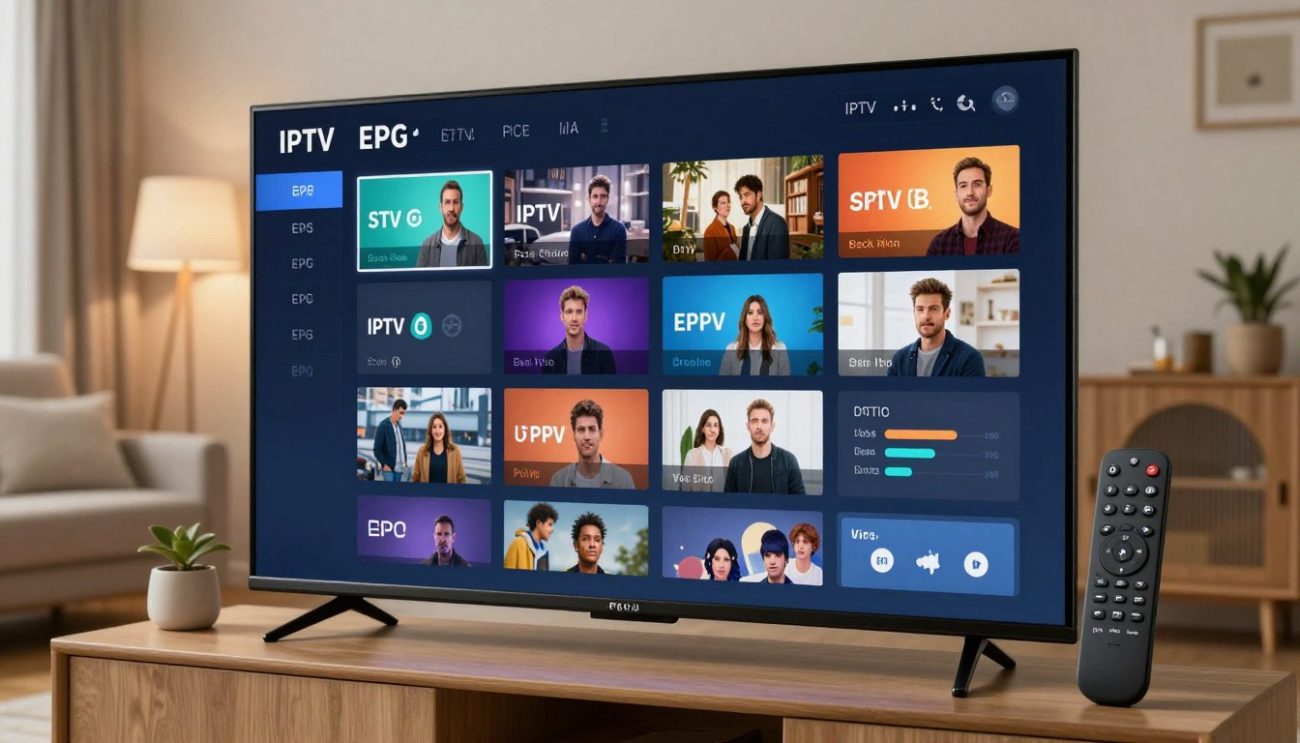
Changing EPG Grid Size and Density
Adjusting the grid size and density is a key step in personalizing your EPG. A compact grid lets you see more channels at once. A larger grid makes it easier to navigate. To change the grid size, go to the EPG settings in your IPTV app. Look for the grid or display options and adjust as you like.
Customizing Colour Schemes and Themes
Changing the colour scheme and theme of your EPG makes it more appealing. Most IPTV apps offer various themes or let you customize colours manually. To do this, go to the EPG settings, find the theme or colour options, and pick your favourite. This can reduce eye strain and make watching TV more enjoyable.
Adjusting Font Sizes for Better Readability
Ensuring your EPG is easy to read is crucial. If the text is too small, increase the font size in the EPG settings. If it’s too large, decrease it. This adjustment greatly improves your EPG’s readability.
Setting Time Format Preferences
Choosing your preferred time format can also enhance your EPG experience. Whether you like a 12-hour or 24-hour clock, most IPTV apps let you change this. Go to the EPG settings, find the time format option, and pick your preferred format. This ensures program times are displayed in a way that’s most comfortable for you.
By using these personalization options, you can create an EPG layout that’s both functional and tailored to your preferences. This makes finding and watching your favourite shows easier and more enjoyable.
Managing and Organizing Your Channel List
Customizing your channel list on Firestick can make watching IPTV more fun and easy. A neat channel list lets you quickly find your favorite shows. This saves time and makes watching TV more enjoyable.
Creating Custom Channel Groups
Creating custom channel groups is a key feature. It lets you sort channels by what you like, like sports or movies. To start, go to your IPTV app’s settings, pick “Create Group,” and name it.
In Tivimate IPTV Player, making groups is easy. Just go to “Channels,” then “Groups,” and add channels to your new group. This is great for families, as everyone can find their favorite shows fast.
Hiding Unwanted Channels from EPG
Removing unwanted channels from your EPG makes your viewing better. Most Firestick IPTV apps let you hide channels you don’t like. For example, in IPTV Smarters Pro, go to “Channels,” pick a channel, and choose “Hide Channel.”
This makes your EPG cleaner and easier to use. It’s a simple way to make your IPTV experience better.
Reordering Channels for Quick Access
Moving your favorite channels to the top makes watching IPTV faster. The steps to reorder channels vary by app, but most let you drag and drop or use a “Sort” function.
In Perfect Player IPTV, long-press a channel and drag it where you want. This customization makes your IPTV fit your viewing habits.
Adding Channel Logos
Adding channel logos makes your list look better and helps you spot channels easily. Many apps let you add logos, either automatically or by uploading them yourself.
In OTT Navigator, add logos by going to the channel list, picking a channel, and choosing “Edit” to upload your logo. This personalizes your IPTV and makes it easier to use.
Configuring EPG Time Zone and Language Settings
To enjoy IPTV on Firestick without timing or language problems, setting up EPG is key. It makes sure your guide shows times and shows in your local time and language. This makes watching TV better.
Adjusting Time Zone for Accurate Program Times
Changing the time zone in your EPG is important. It makes sure program times match your local clock. This helps you catch your favorite shows on time.
- Navigate to the EPG settings within your IPTV app.
- Select the time zone that corresponds to your geographical location.
- Save your changes to update the EPG with the correct time zone.
Setting Language Preferences
Choosing your preferred language for the EPG makes it easier to use. Most IPTV apps let you pick your language for the guide.
- Access the EPG settings menu.
- Choose your preferred language from the available options.
- Confirm your selection to apply the changes.
Configuring Date Format
Changing the date format to what you like makes your IPTV better. Whether you like a 12-hour or 24-hour clock, it makes the EPG easier to use.
| Date Format Option | Description |
|---|---|
| 12-hour format | Displays time in AM/PM format. |
| 24-hour format | Displays time in a continuous 24-hour cycle. |
By adjusting these settings, you can make your IPTV EPG fit your viewing style. This makes your Firestick a great place for entertainment.
Advanced EPG Customization Options
To enhance your IPTV experience on Firestick, explore advanced EPG customization options. These features make your viewing experience more personal. They cater to your preferences and viewing habits.
Setting Up Reminders for Favourite Shows
Setting reminders for your favourite shows is a key feature. It ensures you never miss an episode. To set reminders, go to the EPG settings in your IPTV app. Then, select “Reminders” and choose the shows you want reminders for.
Enabling Catch-Up TV Features
Catch-up TV lets you watch shows you’ve missed. By enabling it in your EPG settings, you can access past episodes. It’s great for catching up on shows or re-watching favourites.
Configuring Parental Controls
Configuring parental controls is crucial for households with children. It lets you block certain channels or programs. This creates a safer viewing environment for kids.
Using External EPG Sources
Some IPTV apps let you use external EPG sources. This adds more flexibility and options for customizing your program guide. To use an external EPG source, get the EPG URL from your provider. Then, input it into your IPTV app’s EPG settings. This improves the accuracy and detail of your EPG data.
By using these advanced EPG customization options, you can greatly improve your IPTV experience on Firestick. Features like setting reminders, enabling catch-up TV, and configuring parental controls make your viewing experience more tailored and enjoyable.
Troubleshooting Common EPG Issues on Firestick
Fixing EPG problems on your Firestick can solve many issues. This includes data loading problems and wrong program times. A working EPG is key for a smooth viewing experience with IPTV services on Firestick.
EPG Data Not Loading or Updating
Having trouble with EPG data loading or updates? First, check your internet connection. A stable connection is essential for EPG data to load right.
Next, verify your EPG source URL. Make sure the URL is correct and active. Sometimes, the problem lies with the EPG provider, so it’s good to check their status or reach out to support.
- Check the EPG update schedule in your IPTV app settings.
- Try refreshing or restarting the IPTV app.
- If the issue doesn’t go away, try a different EPG source.
Incorrect Program Times Displayed
Seeing the wrong program times can be annoying. Often, it’s because of time zone settings. Make sure your Firestick and IPTV app are set to the right time zone.
Also, look at the EPG time offset settings in your IPTV app. Adjusting this can help match program times with your local time.
| Issue | Potential Solution |
|---|---|
| Incorrect Time Zone | Adjust Firestick and IPTV app time zone settings |
| EPG Time Offset | Configure EPG time offset in IPTV app settings |
Missing Channel Information
Missing channel info in your EPG? Start by checking your channel list configuration. Make sure all channels you want are added and set up right in your IPTV app.
Also, verify that your EPG source includes data for those channels. Sometimes, your EPG provider might not have info for all channels.
EPG Sync Problems
EPG sync problems can happen for many reasons. One common cause is mismatched settings between your IPTV app and EPG source. Make sure both are set up correctly and there are no conflicts.
By following these steps, you should be able to fix common EPG issues on your Firestick. If problems keep happening, it might be time to contact your IPTV service provider for help.
Conclusion
Customizing your IPTV EPG on Firestick can really improve your viewing experience. By following the steps in this guide, you can make a guide that fits your needs perfectly.
A good EPG makes finding channels and shows easy. It also helps you get the most from your IPTV subscription. You can customize channel lists, set reminders, and adjust display settings to fit your preferences.
Remember, a well-set EPG is essential for great entertainment. This guide will help you make your IPTV experience better. Enjoy your Firestick device more with a customized EPG.