

Streaming your favorite content is now easier than ever. This is thanks to the mix of Firestick IPTV and M3U playlist URLs. If you’re new to IPTV streaming, it might seem hard at first. But with the right help, you can explore a huge world of entertainment.
Using M3U playlists with IPTV apps on Firestick devices lets you watch many channels and content. This guide will show you how to start with IPTV streaming easily.
By the end of this guide, you’ll be ready to enjoy your favorite shows and movies. You’ll use the best of what IPTV has to offer.
Understanding M3U Playlists and Their Benefits for Firestick Users
To get the most out of Firestick for IPTV streaming, knowing about M3U playlists is key. M3U playlists are a big part of IPTV streaming. They let users watch lots of channels and content on their Firestick devices.
What Is an M3U Playlist File?
An M3U playlist is a file that stores multimedia playlists. It’s a simple text file with media file locations. For IPTV, it links to TV channels and on-demand content. This makes it easy for users to find their favorite media.
Why M3U Format Is Perfect for IPTV Streaming
The M3U format is great for IPTV streaming because it’s easy and flexible. Users can edit and customize playlists easily. Plus, M3U files work well with different IPTV apps, making them versatile for streaming.
M3U vs. M3U8: Understanding the Difference
M3U and M3U8 differ mainly in character encoding. M3U uses standard encoding, while M3U8 uses UTF-8. This makes M3U8 better for international content. Firestick users often prefer M3U8 for its wider compatibility.
| Feature | M3U | M3U8 |
|---|---|---|
| Character Encoding | Standard Encoding | UTF-8 Encoding |
| Compatibility | Wide Compatibility | Broad Compatibility with International Characters |
| Usage in IPTV | Commonly Used | Preferred for International Content |
In summary, knowing about M3U playlists and their types is key for a great IPTV streaming experience on Firestick. Understanding the benefits and differences between M3U and M3U8 helps users choose the best for their IPTV setup.
What You Need to Get Started with M3U Playlists on Firestick
Before you start with M3U playlists on Firestick, make sure you have the right setup. You’ll need the right hardware, a fast internet connection, and a compatible Firestick model.
Essential Hardware Requirements
To enjoy IPTV on your Firestick, you’ll need:
- A Firestick device (more on the compatible models later)
- A stable internet connection (broadband or Wi-Fi)
- A compatible remote control or the Fire TV app on your smartphone
- A TV with HDMI input
- Optional: a VPN subscription for enhanced privacy and security
Firestick Hardware Specifications: Make sure your Firestick has enough power. The latest models like Firestick 4K or Firestick 4K Max are best for better performance and higher resolution streaming.
Recommended Internet Speed for Smooth Streaming
A fast and stable internet connection is key for smooth IPTV streaming. Here are the speeds you need:
- For SD (Standard Definition) content: at least 3 Mbps
- For HD (High Definition) content: at least 5 Mbps
- For Full HD content: at least 10 Mbps
- For 4K content: at least 25 Mbps
Tip: Always check with your internet service provider to make sure your plan can handle your streaming needs, especially if you’re streaming on multiple devices at once.
Firestick Models That Work Best
While most Firestick models can stream IPTV, some are better than others. Here are the top picks:
- Firestick 4K Max: Offers the best performance for 4K streaming
- Firestick 4K: Supports 4K streaming at 1080p and HDR
- Firestick (3rd Generation): A more budget-friendly option that still supports HD streaming
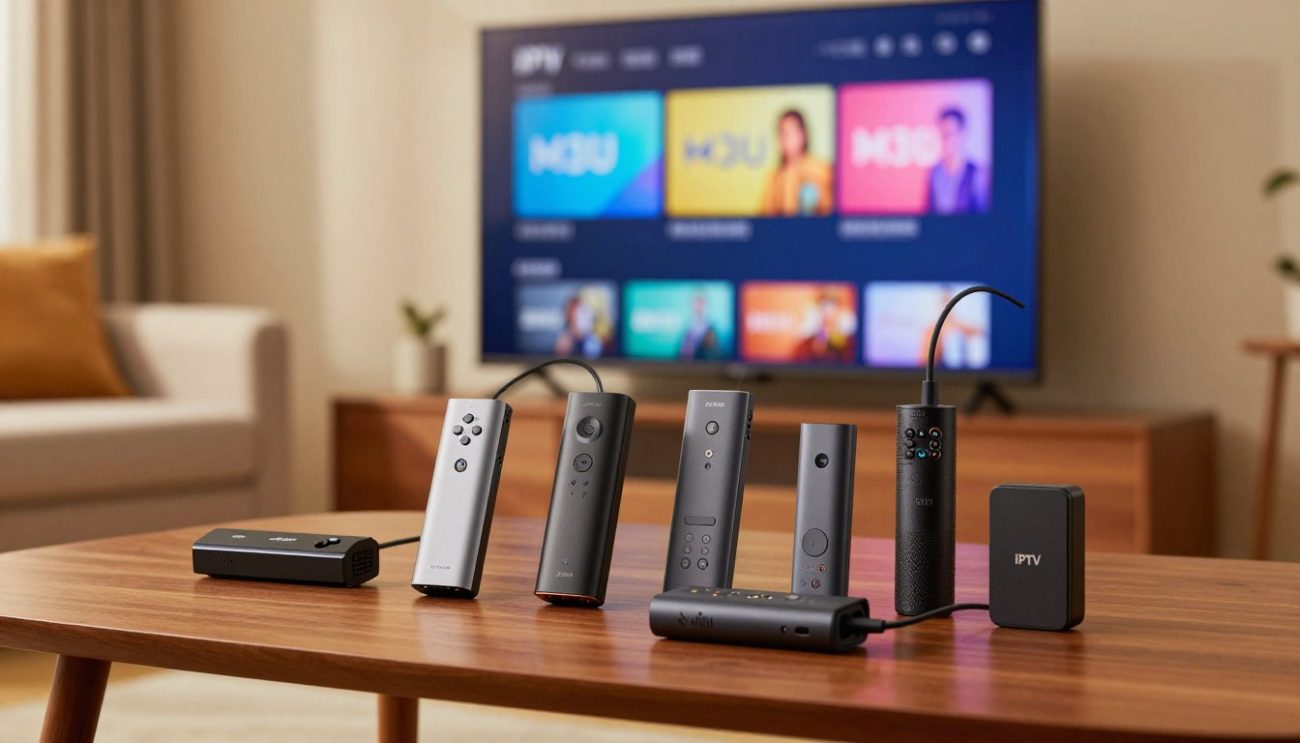
When picking a Firestick model, think about your streaming needs and budget. The Firestick 4K Max is the most powerful and recommended for heavy users.
Where to Find and How to Obtain M3U Playlist URLs
M3U playlist URLs open the door to a world of IPTV channels on your Firestick. To start watching, you need a valid M3U playlist URL.
Getting M3U Links from Your IPTV Service Provider
The best way to get an M3U playlist URL is from your IPTV service provider. When you sign up for an IPTV service, they give you a unique M3U URL. This URL lets you access their channel lineup.
Steps to obtain M3U URL from your IPTV provider:
- Log in to your IPTV service provider’s website or app.
- Navigate to your account settings or dashboard.
- Look for the “M3U Playlist” or “IPTV Settings” section.
- Copy the provided M3U URL or download the M3U file.
Free M3U Playlist Sources and Their Limitations
Free M3U playlist sources are available online. But, they have limitations and risks.
| Source | Reliability | Content Quality |
|---|---|---|
| Free M3U repositories on GitHub | Variable | Often outdated or broken links |
| Online forums and communities | Community-driven | Quality varies greatly |
| Unofficial IPTV websites | Unreliable | May contain illegal or copyrighted content |
Legal Considerations for Canadian IPTV Users
In Canada, it’s important to know the legal rules for M3U playlists and IPTV streaming.
Understanding Copyright Laws in Canada
Canada’s copyright laws protect content creators and distributors. Streaming copyrighted content without permission can break these laws.
Key points to consider:
- Make sure your IPTV service has the right licenses for their content.
- Be careful of services that offer very low prices or “free” access to premium channels.
- Using illegal IPTV services can lead to fines or legal trouble.
Choosing Legitimate IPTV Services
To follow the law, pick IPTV services that:
- Have clear pricing and business practices.
- Offer good customer support and clear terms of service.
- Provide high-quality, stable streams.
By following these tips and choosing legal IPTV services, Canadian users can enjoy many channels while respecting copyright laws.
Preparing Your Firestick to Install IPTV Applications
To watch IPTV on your Firestick, you need to set up your device first. You must change your Firestick settings to let you install IPTV apps. These apps can’t be found in the Amazon App Store.
Enabling Installation from Unknown Sources
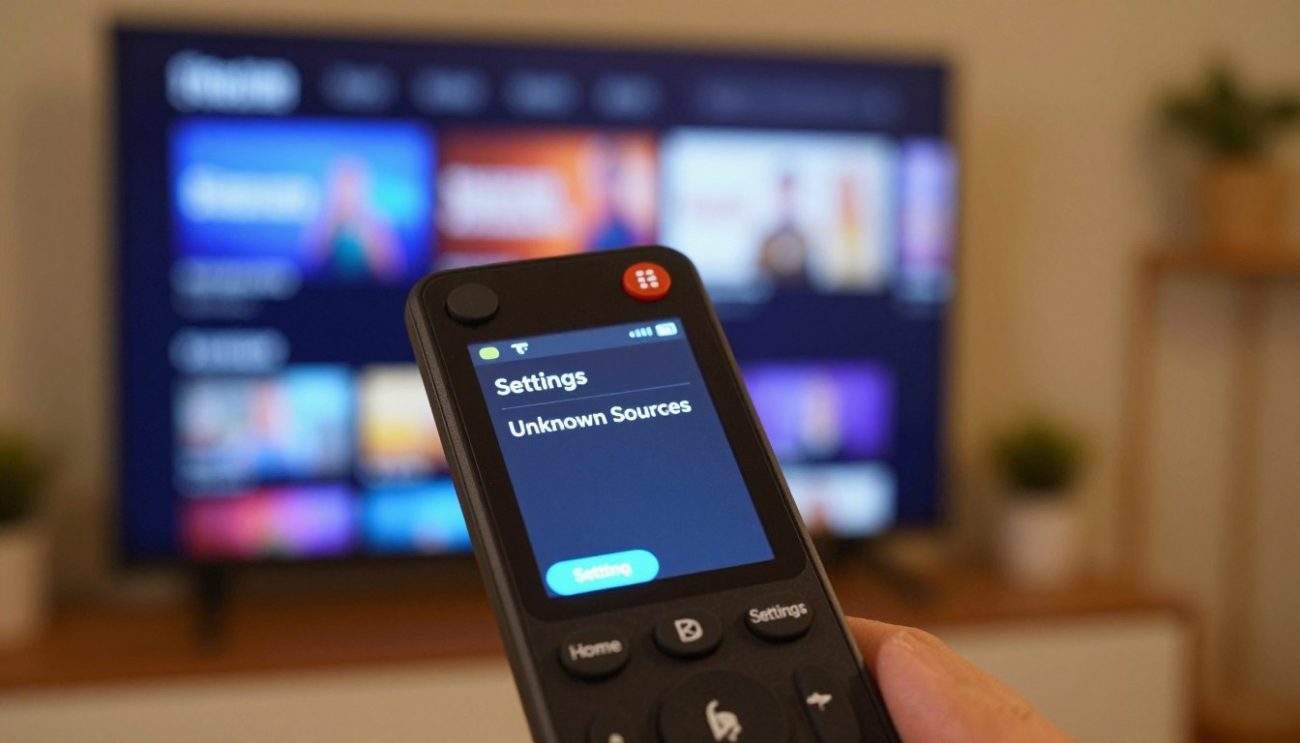
Your Firestick only lets you install apps from the Amazon App Store by default. To install IPTV apps, you must allow apps from unknown sources. This means going into your Firestick’s settings menu.
Step 1: Access Firestick Settings
First, go to your Firestick’s home screen. Then, click on the “Settings” menu. It looks like a gear icon.
Step 2: Navigate to My Fire TV
In the Settings menu, scroll down. Choose “My Fire TV” or “Device” based on your Firestick model. This area shows your device info and lets you access developer options.
Step 3: Enable Developer Options
In the “My Fire TV” section, find “Developer Options.” Here, you’ll see a toggle for “Apps from Unknown Sources.” Turn it on. You might see a warning about risks. Make sure you understand these risks.
Installing the Downloader App
Now that you can install apps from unknown sources, you’re ready to get the Downloader App. This app is key for installing IPTV apps on your Firestick. It lets you download and install APK files from the internet.
To get the Downloader App, follow these steps:
- Go back to your Firestick home screen.
- Use the search function to find the “Downloader” app.
- Select the Downloader App from the search results and choose to download and install it.
- Once installed, launch the Downloader App.
With the Downloader App installed and the ability to install apps from unknown sources enabled, your Firestick is now ready for IPTV app installation.
Top IPTV Apps That Support M3U Playlists on Firestick
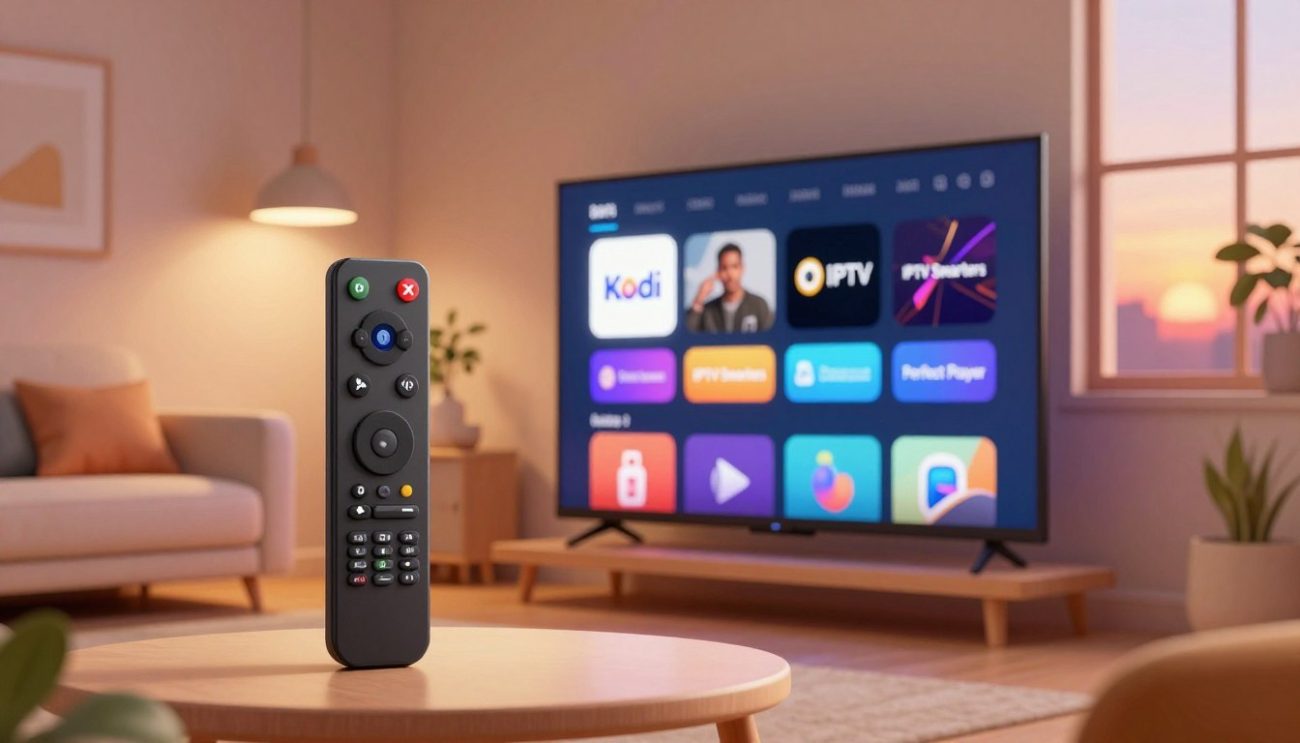
The IPTV world on Firestick is huge, with many apps to choose from. Some apps are better than others because of their great features and how well they work. It’s important to think about the app’s design, channel selection, and if it works with M3U playlists.
TiviMate IPTV Player: Feature-Rich and User-Friendly
TiviMate IPTV Player is loved by many IPTV fans. It has a simple design that makes it easy to use and manage your M3U playlists. It also has EPG support, channel grouping, and lets you customize playback.
IPTV Smarters Pro: Versatile and Popular Choice
IPTV Smarters Pro is a top pick for Firestick users. It’s great because it works with many IPTV types and is easy to use. You can manage playlists, integrate EPG, and customize playback settings.
Perfect Player IPTV: Lightweight and Efficient
Perfect Player IPTV is perfect for those who want a light app. It plays M3U playlists smoothly without using too much power. It also has features like playlist editing and EPG support.
Kodi with PVR IPTV Simple Client: Powerful Media Centre
Kodi is a famous media centre that works with the PVR IPTV Simple Client add-on. This combo lets you watch live TV and manage M3U playlists in Kodi. Kodi is customizable and has a big community, making it a great choice.
OTT Navigator IPTV: Modern Interface with Advanced Features
OTT Navigator IPTV has a modern look and advanced features for IPTV. It supports M3U playlists and has EPG, channel filtering, and parental controls. It’s designed for a smooth viewing experience on Firestick.
Each app has its own strengths, meeting different needs and preferences. Knowing what TiviMate, IPTV Smarters Pro, Perfect Player IPTV, Kodi with PVR IPTV Simple Client, and OTT Navigator IPTV offer helps users choose the best app for their Firestick IPTV needs.
Installing TiviMate IPTV Player on Your Firestick
Installing TiviMate IPTV Player on your Firestick is easy and makes streaming better. TiviMate is loved for its simple design and strong features. We’ll show you how to install TiviMate, set it up, and start streaming IPTV.
Downloading TiviMate from Amazon App Store
The Amazon App Store makes downloading TiviMate simple. First, make sure your Firestick is online and you’re on the home screen.
- Click the search icon (a magnifying glass) on the top-left corner of the screen with your Firestick remote.
- Type “TiviMate” in the search bar and pick the app from the results.
- Hit the “Get” or “Download” button to start installing.
- Wait for the app to download and install on your Firestick.
- After it’s installed, you can open TiviMate from the App Store or find it in your app list.
Installing TiviMate via Downloader App
If TiviMate isn’t on the Amazon App Store, or if you like another way, use the Downloader app.
- First, make sure you have the Downloader app on your Firestick. If not, get it from the Amazon App Store.
- Open the Downloader app and choose “Browser”.
- Go to the TiviMate website or a trusted site with the APK file.
- Download the APK file and wait for the installation prompt.
- Follow the on-screen instructions to finish the installation.
First-Time Setup and Configuration
After installing TiviMate, you’ll need to set it up for IPTV.
Initial Setup:
- Launch TiviMate on your Firestick.
- You’ll see a guide for the initial setup.
- Follow the prompts to set up basic settings like language and playback options.
Adding Your M3U Playlist:
| Step | Description |
|---|---|
| 1 | Navigate to the playlist section in TiviMate. |
| 2 | Click “Add Playlist” and enter your M3U playlist URL. |
| 3 | Save the changes and wait for TiviMate to load your channels. |
With TiviMate set up, you’re ready to enjoy IPTV streaming on your Firestick. Next, we’ll talk about managing and optimizing your IPTV playlists for the best viewing.
Complete Guide to Adding M3U Playlists on Firestick Using TiviMate
This guide will show you how to add M3U playlists to TiviMate on your Firestick. It’s easy and will make streaming better.
Launching TiviMate for the First Time
When you open TiviMate for the first time, you’ll see a user-friendly interface. Make sure your Firestick is online. Also, have your M3U playlist URL ready.
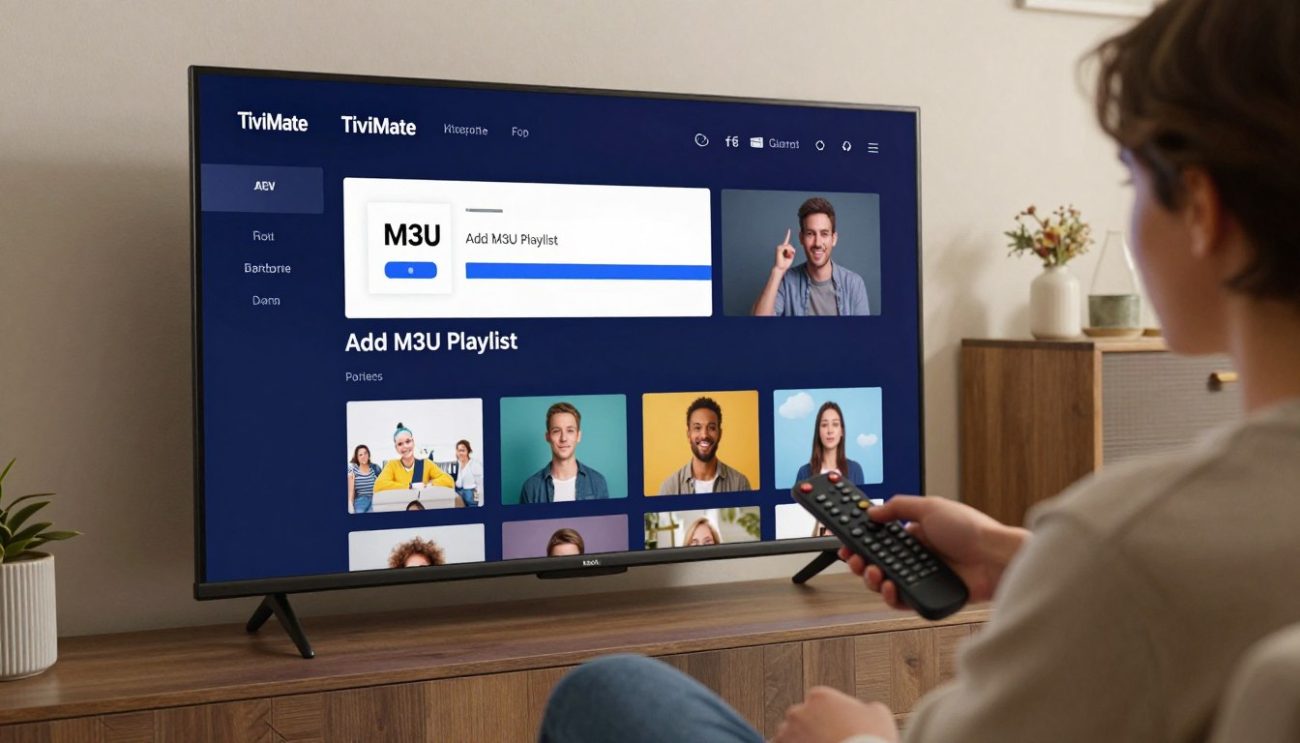
Adding Your First M3U Playlist
To add your first M3U playlist, just follow these steps:
Step 1: Access the Playlists Menu
Go to the “Playlists” menu in TiviMate. It’s shown as a list icon.
Step 2: Select Add Playlist Option
Choose “Add Playlist” to start adding your M3U playlist.
Step 3: Enter Your M3U URL
Put in the URL of your M3U playlist. Make sure it’s right to avoid problems.
Step 4: Configure Playlist Name and Settings
Change the playlist name and settings as you like. You can also set the EPG URL if you have one.
Loading M3U Files from Local Storage
TiviMate lets you load M3U files from your local storage. Here’s how:
- Navigate to the “Playlists” menu.
- Select “Add Playlist” and then choose “Local File.”
- Browse your Firestick’s storage to find your M3U file.
- Select the file to add it to TiviMate.
By following these steps, you can easily add and manage M3U playlists on your Firestick with TiviMate. It will improve your IPTV streaming.
How to Set Up IPTV Smarters Pro with M3U Playlists
Setting up IPTV Smarters Pro with M3U playlists on Firestick is easy. IPTV Smarters Pro is known for its simple interface and great features.
Installing IPTV Smarters Pro on Firestick
To start, install IPTV Smarters Pro on your Firestick. Here’s how:
- Go to the Firestick home screen and find “Find” or “Search.”
- Type “IPTV Smarters Pro” on the keyboard.
- Choose the IPTV Smarters Pro app from the search results.
- Click “Download” or “Get” to install it.
Creating Your IPTV Smarters Pro Account
After installing, open IPTV Smarters Pro and create an account. This unlocks all its features.
- Open IPTV Smarters Pro and click “Create Account.”
- Enter your email and other details.
- Check your email for a verification link from IPTV Smarters Pro.
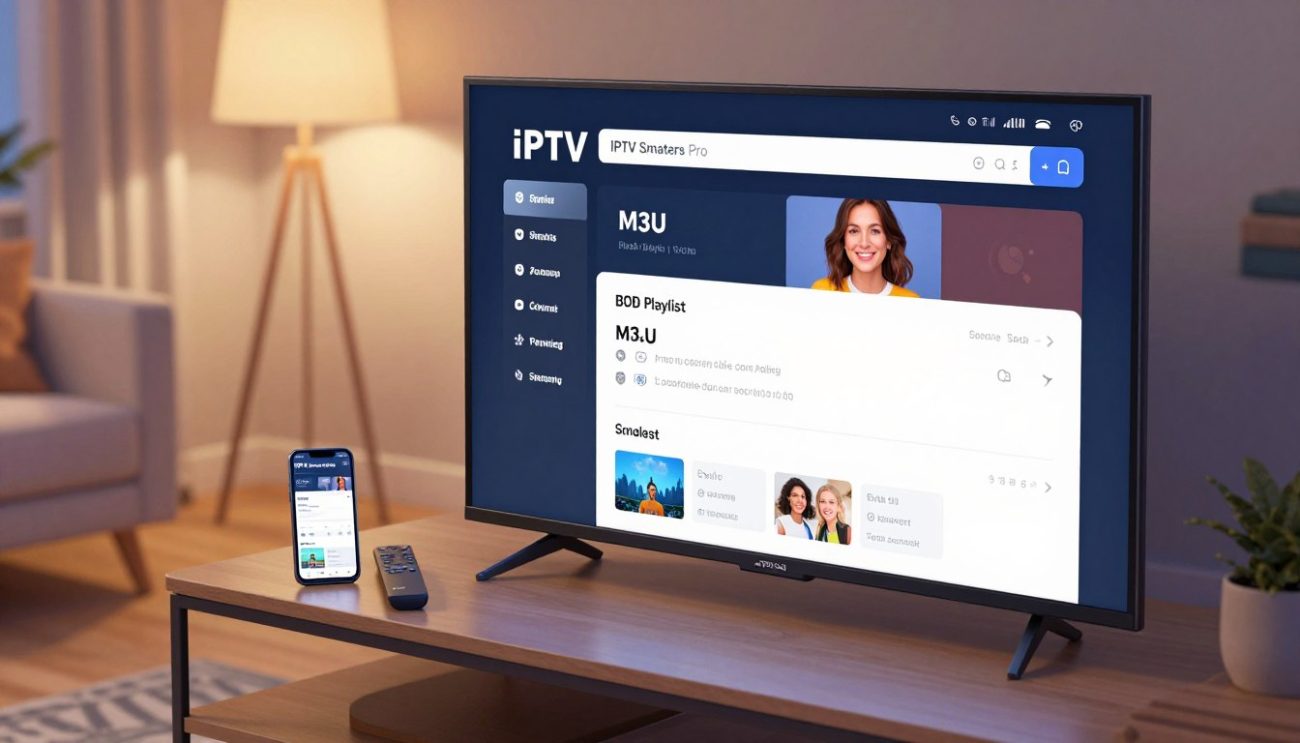
Adding M3U URL to IPTV Smarters Pro
To start streaming, add your M3U URL to IPTV Smarters Pro.
Using the M3U URL or File Option
IPTV Smarters Pro lets you add M3U playlists via URL or file.
- To add a URL, go to “Add User” and choose “M3U.”
- Enter the M3U URL from your IPTV service.
Entering Playlist Information
After adding the M3U URL, enter some playlist details.
- Give your playlist a name for easy identification.
- Set up any extra settings your IPTV service needs.
Configuring Stream Format Settings
IPTV Smarters Pro lets you tweak stream format settings for better playback.
- Pick the right stream type (e.g., MPEG-TS, HLS).
- Adjust buffer settings based on your internet speed.
Here’s a quick guide to IPTV Smarters Pro settings:
| Setting | Description | Recommended Value |
|---|---|---|
| Stream Type | Type of streaming protocol | MPEG-TS or HLS |
| Buffer Size | Buffer size in milliseconds | Adjust based on internet speed |
Xtream Codes API Alternative Method
IPTV Smarters Pro also supports Xtream Codes API for IPTV services using it.
- Go to “Add User” and pick “Xtream Codes API.”
- Enter the API URL, username, and password from your IPTV service.
Xtream Codes API is a strong way to get IPTV content, especially for services using this API.
Using Perfect Player IPTV for M3U Playlists on Firestick
Streaming M3U playlists on Firestick is easy with Perfect Player IPTV. This app is lightweight but powerful. It makes watching videos smooth and fun.
Installing Perfect Player on Your Device
To use Perfect Player IPTV, first install it on your Firestick. Enable unknown sources in your Firestick settings. Then, use Downloader to get the Perfect Player APK from a safe source.
After downloading, install the APK and open the app.
Navigating the Perfect Player Interface
The Perfect Player IPTV interface is easy to use. When you open the app, you’ll see a simple layout. It has options for setting up your M3U playlists.
Adding M3U Playlist URLs
To add your M3U playlist URLs, follow these steps:
Accessing Playlist Settings
Go to ‘Settings’ and pick ‘Playlist Settings’.
Inputting Your M3U Link
Choose ‘Add Playlist’ and enter your M3U URL. You can also give your playlist a name for easier finding.
Perfect Player IPTV works with both M3U and M3U8 formats. This makes it good for many IPTV services.
Configuring Decoder and Buffer Options
For the best performance, adjust decoder and buffer settings. Perfect Player IPTV lets you tweak these based on your internet and device.
Decoder Settings: Pick between software and hardware decoding. Hardware decoding might improve performance but could cause problems with some streams.
Buffer Settings: Change the buffer size based on your internet speed. A bigger buffer size can stop stuttering but might add delay.
By adjusting these settings, you can get a smooth streaming experience with Perfect Player IPTV on your Firestick.
Setting Up Kodi with PVR IPTV Simple Client for M3U Streaming
Kodi and PVR IPTV Simple Client make a great team for streaming M3U playlists on Firestick. They let you watch live TV and IPTV content easily.
Installing Kodi on Firestick
First, install Kodi on your Firestick. You can get it from the Amazon App Store.
- Go to the Amazon App Store on your Firestick.
- Type “Kodi” in the search bar and pick the app.
- Tap “Download” to get Kodi on your device.
Enabling and Installing PVR IPTV Simple Client
After Kodi is installed, you need to set up PVR IPTV Simple Client.
Accessing Kodi Add-ons Menu
To get to the add-ons menu, follow these steps:
- Open Kodi on your Firestick.
- Go to “Add-ons” from the main menu.
Finding PVR IPTV Simple Client
Find PVR IPTV Simple Client in the Add-ons menu like this:
- Click “Install from repository.”
- Pick “PVR IPTV Simple Client” from the list.
Installing the Add-on
To install PVR IPTV Simple Client, just click “Install” and wait.
Configuring Your M3U Playlist in Kodi
Now that PVR IPTV Simple Client is installed, you can set up your M3U playlist.
Entering M3U URL Path
To add your M3U playlist, do this:
- Go to “PVR IPTV Simple Client” settings in Kodi.
- Put in the URL path for your M3U playlist.
Setting Refresh Intervals
Set the refresh intervals for your M3U playlist. This keeps your content up to date.
| Refresh Interval | Description |
|---|---|
| 1 hour | Updates the playlist every hour. |
| 2 hours | Updates the playlist every two hours. |
| 4 hours | Updates the playlist every four hours. |
Accessing Live TV Through Kodi
With your M3U playlist set up, you can watch live TV on Kodi.
Enjoy your favorite channels and shows with Kodi and PVR IPTV Simple Client!
Managing and Organizing Your M3U Playlists on Firestick
Managing your M3U playlists well is key for a great Firestick IPTV experience. As you add more channels, organizing them is crucial. This makes it easy to find your favorite shows and movies.
Creating Custom Channel Groups
Creating custom channel groups is a great way to manage your playlists. You can sort channels by type, like sports or movies. To do this, go to the channel list, pick the channels, and then “Add to Group”. This makes finding your favorite content easier.
Marking Favourite Channels for Quick Access
Many IPTV apps let you mark channels as favorites. This is super helpful when you have lots of channels. Marking your top channels as favorites lets you access them fast. Just press a button like the “star” icon while watching or selecting a channel.
Hiding Unwanted Channels
Hide channels you never watch to clean up your list. This makes finding your favorite shows easier. The steps to hide channels vary by app, but usually, you right-click and choose “Hide”.
Updating and Refreshing Playlist URLs
Playlist URLs can change or expire. Keeping them updated is important for smooth service. Most apps let you update URLs in settings. Check your URLs often and update them as needed to avoid service issues.
Managing Multiple M3U Playlists
Some like to have different playlists for various content. Managing multiple playlists means adding, removing, or switching between them. You can do this in the app’s settings. Here, you can add new playlists, delete old ones, or set a default playlist.
Using these management tips can greatly improve your Firestick IPTV experience. It makes watching shows and movies more enjoyable and personalized.
Adding Electronic Program Guide (EPG) Data to Your Playlists
Improving your IPTV experience on Firestick is more than just adding M3U playlists. You also need to add Electronic Program Guide (EPG) data. EPG data shows a TV program schedule, helping you plan your viewing.
Understanding EPG and Its Importance
The Electronic Program Guide (EPG) is key for IPTV users. It makes it easy to find and watch different channels and programs. EPG data includes info on current and future TV shows, helping you plan your viewing schedule.
Finding Compatible EPG XML Sources
To add EPG data to your M3U playlists, you need to find the right EPG XML sources. These sources give the data in XML format, which IPTV apps like TiviMate and IPTV Smarters Pro can read.
- Search online for “EPG XML sources” or “IPTV EPG data” to find relevant providers.
- Check if your IPTV service provider offers EPG data as part of their package.
- Ensure the EPG source is compatible with your IPTV app.
Adding EPG URLs to TiviMate
TiviMate is a well-liked IPTV player that supports EPG data. To add an EPG URL to TiviMate:
- Open TiviMate and go to settings.
- Select “EPG” and then “EPG Source.”
- Enter the EPG URL provided by your IPTV service or a third-party EPG source.
- Save the changes and restart TiviMate.
Configuring EPG in IPTV Smarters Pro
IPTV Smarters Pro also supports EPG data, making your viewing better. To configure EPG in IPTV Smarters Pro:
| Step | Action |
|---|---|
| 1 | Open IPTV Smarters Pro and go to settings. |
| 2 | Select “EPG” and enter the EPG URL. |
| 3 | Adjust EPG settings as needed. |
Setting Up EPG in Perfect Player
Perfect Player is another IPTV app that benefits from EPG data. To set up EPG in Perfect Player:
- Navigate to settings and select “EPG.”
- Enter the EPG URL and configure other EPG settings as desired.
- Save your changes to enjoy EPG data with your M3U playlists.
Troubleshooting EPG Sync Issues
Sometimes, EPG data may not sync correctly with your IPTV app. Common issues include incorrect EPG URLs, server problems, or app configuration errors. To troubleshoot:
- Verify the EPG URL is correct and active.
- Check the IPTV app’s EPG settings.
- Restart the app or your Firestick device.
Troubleshooting Common Issues with M3U Playlists on Firestick
If your M3U playlists aren’t working right on your Firestick, we’ve got some tips to help. Issues like connection errors and buffering can make streaming tough. Fixing these problems can make your IPTV experience better.
Playlist Won’t Load or Shows Connection Error
Many users face problems when their M3U playlist won’t load or shows a connection error. This might be because of internet issues or problems with the M3U URL.
Checking Your Internet Connection
First, make sure your internet is working well. You need at least 25 Mbps for HD streaming.
Verifying M3U URL Accuracy
Double-check your M3U URL is correct and active. A small mistake or an expired URL can cause problems.
Testing Playlist Validity
Use online tools or other IPTV players to test your M3U playlist. This can help find if the problem is with the playlist itself.
Constant Buffering and Stuttering During Playback
Buffering and stuttering can be annoying. Try changing your buffer size settings or video decoders to fix these issues.
Adjusting Buffer Size Settings
Increasing the buffer size can help if your internet is slow. Look for this setting in your IPTV app’s settings menu.
Switching Video Decoders
Some IPTV apps let you switch video decoders. Trying different decoders might make playback smoother.
Channels Not Appearing or Showing Blank Screen
Sometimes, channels won’t show or appear as a blank screen. This could be due to channel list issues or problems with your IPTV service provider.
EPG Information Not Displaying
If your Electronic Program Guide (EPG) info isn’t showing, it might be because of wrong EPG URL settings or EPG source issues.
App Crashes or Freezes Frequently
If your IPTV app keeps crashing or freezing, try clearing the app cache or reinstalling it.
| Issue | Potential Solution |
|---|---|
| Playlist won’t load | Check internet connection, verify M3U URL |
| Buffering/Stuttering | Adjust buffer size, switch video decoder |
| Channels not appearing | Check channel list, contact IPTV provider |
| EPG not displaying | Verify EPG URL, check EPG source |
| App crashes/freezes | Clear app cache, reinstall app |
By following these steps, you should be able to fix common M3U playlist issues on Firestick. This will make your IPTV streaming smoother.
Optimizing Streaming Performance for M3U Playlists on Firestick
Improving your Firestick for M3U playlist streaming can make watching much better. To get the best results, you can tweak a few settings and options.
Adjusting Hardware Acceleration Settings
Hardware acceleration can really change how well you stream. Many IPTV apps turn it on to make playback smoother. But, turning it off might fix buffering or make streams work better.
- Navigate to the settings menu of your IPTV app.
- Look for the “Hardware Acceleration” option.
- Toggle it on or off, depending on your current setting and the issues you’re experiencing.
Configuring Buffer Size for Your Internet Speed
The buffer size is key. It’s how much video data loads before you start watching. Setting it right for your internet speed can stop buffering and stuttering.
Recommended Buffer Sizes:
- For internet speeds above 25 Mbps, a buffer size of 1000-2000ms is usually sufficient.
- For slower connections (below 25 Mbps), consider increasing the buffer size to 3000-5000ms to compensate for potential network fluctuations.
Choosing the Right Video Decoder
Picking the right video decoder is important for smooth playback. Most IPTV apps let you choose between software and hardware decoding.
Software Decoding: Useful for troubleshooting or when hardware decoding causes issues.
Hardware Decoding: Generally provides better performance and is recommended for most users.
Clearing App Cache and Data Regularly
Keeping your IPTV app in good shape is key for smooth streaming. Clearing the cache and data can fix problems from bad files or too much data.
- Go to your Firestick’s Settings menu.
- Select “Applications” and then “Manage Installed Applications.”
- Choose your IPTV app and select “Clear Cache” and “Clear Data.”
Using Ethernet Connection Instead of Wi-Fi
For the best connection, use an Ethernet cable. Wi-Fi can have problems like interference and signal loss, which hurt streaming quality.
- Connect your Firestick to your router using an Ethernet cable.
- Ensure your Firestick is configured to use the Ethernet connection.
Protecting Your Privacy While Using M3U Playlists on Firestick
IPTV streaming is getting popular in Canada. It’s important to keep your online privacy safe. As more people use M3U playlists on Firestick, knowing about privacy is key.
Why VPN Is Essential for IPTV Streaming in Canada
Using a VPN is crucial for IPTV streaming in Canada. Here’s why:
- Encrypting your internet traffic to prevent ISP throttling
- Protecting your online activities from being monitored
- Accessing geo-restricted content by masking your IP address
- Enhancing security against cyber threats
A VPN makes a secure tunnel for your data. This keeps your IPTV streaming private.
Best VPN Services Compatible with Firestick
Not all VPNs work well with Firestick. Here are some top ones:
ExpressVPN for Firestick
ExpressVPN is a top choice for Firestick users. It offers:
- High-speed servers
- Wide server network
- Excellent customer support
NordVPN for Firestick
NordVPN has strong security features. It includes:
- Double encryption
- Kill switch functionality
- Large server network
Surfshark for Firestick
Surfshark is known for its:
- Affordable pricing
- Unlimited device connections
- CleanWeb ad blocker
Installing and Configuring VPN on Firestick
To install a VPN on Firestick, follow these steps:
- Download the VPN app from the Amazon App Store
- Launch the VPN app and sign in
- Choose a server location and connect
For detailed instructions, check your VPN provider’s documentation.
Avoiding Suspicious IPTV Services
Be careful when choosing an IPTV service. Avoid providers that:
- Offer unusually cheap subscriptions
- Lack transparent information about their services
- Have poor customer reviews
Choose reputable IPTV services that follow Canadian laws and regulations.
Best Practices and Tips for Using M3U Playlists on Firestick
To enjoy your M3U playlists on Firestick, follow these tips. These strategies will improve your streaming, ensure smooth playback, and keep your IPTV setup secure and organized.
Keeping Your Playlists Updated
It’s important to update your M3U playlists regularly. This keeps you connected to the newest channels and content. Here are some ways to keep your playlists up to date:
- Check your IPTV provider’s website or support channels for updated M3U links.
- Use automated playlist update features if available in your IPTV app.
- Manually refresh your playlists periodically to ensure you’re getting the latest content.
Backing Up Your IPTV App Settings
Backing up your IPTV app settings is a good idea. It saves time and hassle if you need to reinstall the app or switch devices. Most IPTV apps let you export settings or create a backup. Regularly backing up your settings means you can quickly restore your preferences and playlists if needed.
Testing Different IPTV Players
Different IPTV players have unique features and performance. Experimenting with different players can help you find the best one for you. Look at the user interface, channel stability, and extra features like EPG support.
Organizing Channels by Category
Organizing your channels into categories makes watching easier. Most IPTV apps let you create custom groups or categories. Organize your channels by type, like sports, news, movies, or by language. This way, you can quickly find what you want to watch.
Using Parental Controls for Family Safety
If you share your Firestick with family, use parental controls. Many IPTV apps have features to restrict access to certain channels or content based on ratings or custom lists. This makes it safer for kids to watch.
Monitoring Data Usage
Streaming IPTV content uses a lot of data. Monitoring your data usage is key, especially if you have a small internet plan. Most Firestick devices and IPTV apps show data usage statistics. Keep an eye on these to avoid unexpected data overage charges.
Conclusion
Using M3U playlists on Firestick IPTV apps can really improve your streaming. You can get a lot of channels and content by managing these playlists well.
We’ve talked about the good things and how to use M3U playlists on Firestick. We covered setting up your Firestick and installing apps like TiviMate and IPTV Smarters Pro. These steps will help you start streaming IPTV.
By following our tips, you can make your IPTV streaming better. This means a smoother and more fun viewing experience. Whether you’re experienced or new to IPTV, M3U playlists on Firestick can bring you more entertainment and info.