

Are you ready to elevate your streaming experience with IPTV Smarters Pro on your preferred device? Whether you’re an Android enthusiast, a Firestick fan, or a Smart TV user, this guide will walk you through the process.
Configuring IPTV Smarters Pro is a straightforward process that requires a few simple steps. With this popular streaming app, you can access a vast library of content on various devices, making it a great option for those looking to enhance their entertainment experience.
By following this comprehensive guide, you’ll be able to enjoy your favorite shows and movies on Android, Firestick, or Smart TV in no time, completing your streaming setup.
What is IPTV Smarters Pro
IPTV Smarters Pro is a revolutionary application designed to enhance your streaming experience. It offers a comprehensive suite of features that cater to diverse streaming needs.
Overview of the Application
IPTV Smarters Pro is designed to provide users with a seamless and intuitive streaming experience. The application is built with a user-centric approach, ensuring that navigation and content discovery are straightforward and enjoyable.
Key Features and Capabilities
The application boasts several key features that make it a preferred choice for streaming enthusiasts. Some of these features include:
Multi-Screen Support
IPTV Smarters Pro allows for simultaneous streaming on multiple devices, making it ideal for households with various screen preferences. Whether you’re watching on a smart TV, Android device, or Firestick, the experience is optimized for each platform.
EPG Integration
The Electronic Program Guide (EPG) integration provides users with a comprehensive schedule of upcoming programs, enabling them to plan their viewing in advance. This feature is particularly useful for those who enjoy live television.
Catch-Up TV Functionality
With the catch-up TV feature, users can access previously aired content, ensuring they never miss their favorite shows. This functionality is a significant advantage for users with busy schedules.
Supported Platforms and Devices
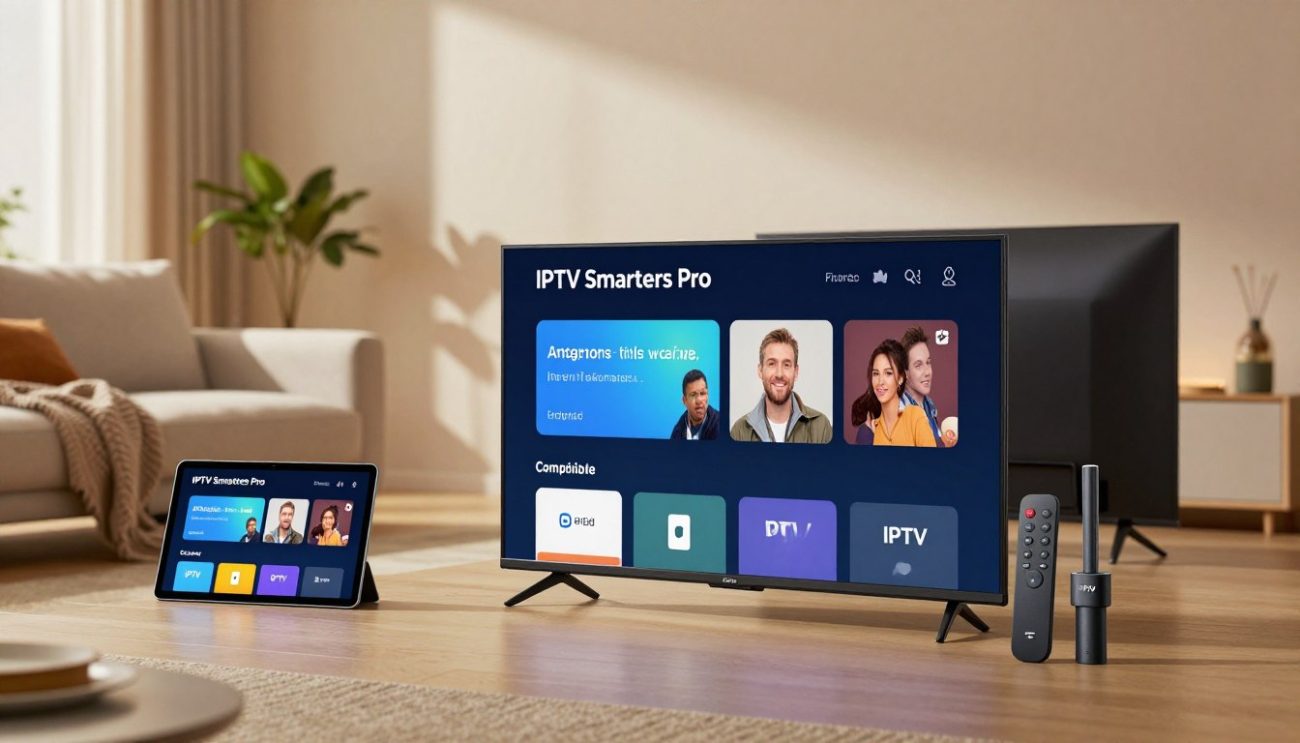
IPTV Smarters Pro is compatible with a wide range of devices and platforms, including Android devices, Amazon Firestick, and various Smart TVs. The following table summarizes the supported platforms:
| Platform/Device | Compatibility | Key Features |
|---|---|---|
| Android Devices | Yes | Google Play Store integration, seamless installation |
| Amazon Firestick | Yes | Easy installation via Downloader, optimized performance |
| Smart TVs | Yes (varies by brand) | Native app support on Samsung, LG, and Sony TVs |
Why Choose IPTV Smarters Pro for Your Streaming Needs
The IPTV Smarters Pro application is designed to cater to diverse streaming needs with its intuitive design and versatile compatibility. This makes it an attractive option for those looking to enhance their streaming experience.
User-Friendly Interface Design
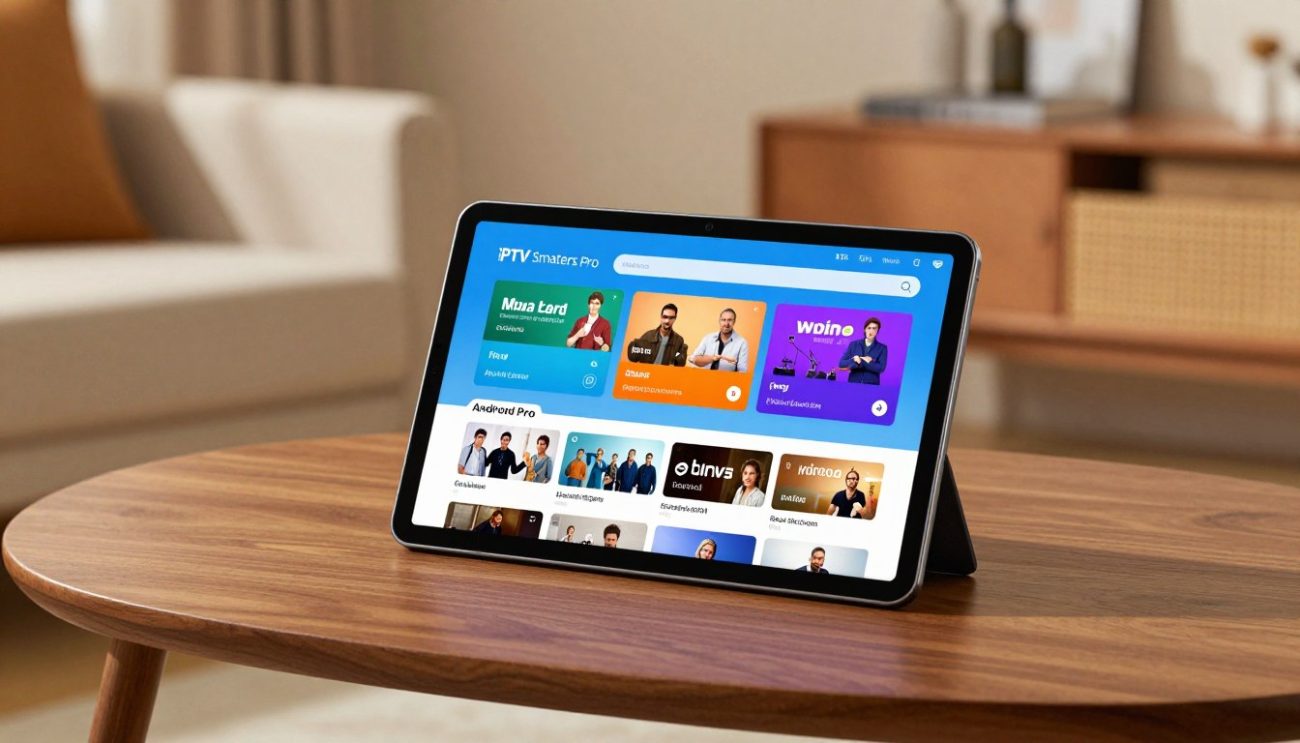
One of the standout features of IPTV Smarters Pro is its user-friendly interface. The application is designed to be intuitive, making it easy for users to navigate through various channels and content without feeling overwhelmed. The clean layout and straightforward menu options ensure that users can quickly find what they’re looking for.
Multi-Device Compatibility Benefits
IPTV Smarters Pro offers multi-device compatibility, allowing users to enjoy their favorite content across various devices. Whether you’re using an Android device, Amazon Firestick, or Smart TV, IPTV Smarters Pro ensures a seamless streaming experience. This compatibility is particularly beneficial for households with multiple devices, as it provides a unified streaming solution.
| Device | Compatibility | Benefits |
|---|---|---|
| Android Devices | Yes | Access to a wide range of streaming content on Android smartphones and tablets. |
| Amazon Firestick | Yes | Enhanced streaming experience on Firestick devices, with easy navigation and access to various channels. |
| Smart TVs | Yes | Seamless integration with Smart TVs, providing a large-screen streaming experience. |
Advanced Playback and Control Options
IPTV Smarters Pro also boasts advanced playback and control options, giving users greater flexibility over their streaming experience. Two notable features include:
Picture-in-Picture Mode
The Picture-in-Picture mode allows users to continue watching their content while navigating through other parts of the application or even other apps on their device. This feature is particularly useful for multitasking or keeping an eye on multiple streams simultaneously.
External Player Support
IPTV Smarters Pro supports external players, enabling users to play their content in their preferred media player. This feature is beneficial for those who have a preferred player with specific features or settings that enhance their viewing experience.
By offering these advanced features, IPTV Smarters Pro provides a more personalized and flexible streaming experience, catering to the diverse needs of its users.
What You Need Before You Begin
To set up IPTV Smarters Pro, you’ll need a few prerequisites in place. Ensuring you have these elements ready will make the installation process smoother and more efficient.
IPTV Service Subscription Requirements
First and foremost, you need an active IPTV service subscription. This subscription is your gateway to accessing a wide range of channels and content. When choosing an IPTV service provider, consider factors like the variety of channels offered, video quality, and customer support.
It’s essential to have your subscription details handy, including your username and password. Some providers may also require you to enter an Xtream Codes API or a M3U playlist URL. Make sure you have this information readily available to avoid any setup issues.
Recommended Internet Connection Specifications
A stable and fast internet connection is crucial for a seamless IPTV experience. The recommended internet speed depends on the quality of the content you’re streaming. For instance:
| Streaming Quality | Recommended Internet Speed |
|---|---|
| SD (Standard Definition) | 5 Mbps |
| HD (High Definition) | 10 Mbps |
| Full HD | 15 Mbps |
| 4K (Ultra High Definition) | 25 Mbps |
Ensure your internet connection meets these requirements to enjoy uninterrupted streaming.
Device Compatibility Checklist
IPTV Smarters Pro is compatible with a variety of devices, including Android devices, Amazon Firestick, and Smart TVs. Before you begin, check that your device meets the following criteria:
- Android devices: Android 5.0 or later
- Amazon Firestick: 2nd generation or later
- Smart TVs: Check if your Smart TV model is supported by IPTV Smarters Pro
Verifying device compatibility beforehand will save you potential troubleshooting headaches down the line.
How to Set Up IPTV Smarters Pro on Android Devices
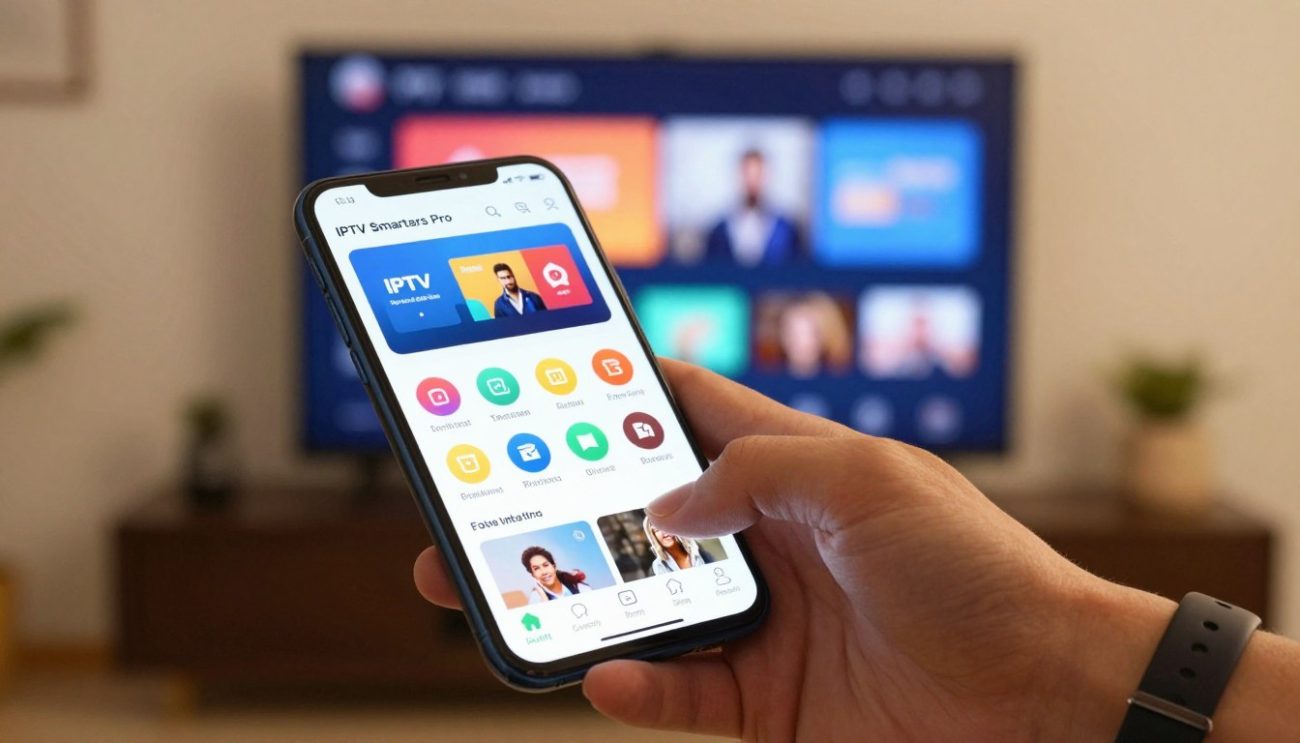
To enjoy IPTV on your Android device, follow this step-by-step guide to set up IPTV Smarters Pro. This process involves downloading the app from the Google Play Store, installing it, and configuring it with your IPTV credentials.
Downloading from the Google Play Store
The first step in setting up IPTV Smarters Pro on your Android device is to download the app from the Google Play Store. To do this:
Step 1: Accessing the Play Store
Open the Google Play Store on your Android device. You can find it on your home screen or in your app drawer.
Step 2: Searching for IPTV Smarters Pro
Type “IPTV Smarters Pro” in the search bar and press Enter. Select the IPTV Smarters Pro app from the search results.
Installing the Application
Once you’ve found the IPTV Smarters Pro app, follow these steps to install it:
Step 3: Initiating the Download
Click the “Install” button to begin downloading the app. Depending on your internet connection, this may take a few moments.
Step 4: Granting Necessary Permissions
After the download is complete, you’ll be prompted to grant the necessary permissions. Review the permissions and click “Accept” to proceed.
Opening and Initial Configuration
With the app installed, it’s time to open it and start the initial configuration:
Step 5: Launching the App for the First Time
Find IPTV Smarters Pro on your device and open it. You’ll be presented with a login screen.
Entering Your IPTV Credentials
To start using IPTV Smarters Pro, you need to enter your IPTV credentials:
Step 6: Selecting Login Method
Choose your login method. Most users will select “Xtream Codes API” or “M3U Playlist.”
Step 7: Inputting Provider Information
Enter the required information provided by your IPTV service provider. This may include the username, password, and URL.
Key Points to Remember:
- Ensure you have a stable internet connection.
- Double-check your IPTV credentials for accuracy.
- Explore the app’s settings to customize your viewing experience.
By following these steps, you can easily set up IPTV Smarters Pro on your Android device and start enjoying your favorite IPTV content.
How to Set Up IPTV Smarters Pro on Amazon Firestick
IPTV Smarters Pro on Firestick offers a seamless streaming experience, and setting it up is easier than you think. This guide will walk you through the process step by step.
Preparing Your Firestick for Installation
Before you can install IPTV Smarters Pro, you need to prepare your Firestick. This involves accessing your Firestick settings to enable the installation of apps from unknown sources.
Step 1: Accessing Firestick Settings
To start, navigate to the Firestick home screen and follow these steps:
- Hover over the “Settings” option at the top menu.
- Select “My Fire TV” or “Device” depending on your Firestick version.
Enabling Apps from Unknown Sources
Enabling apps from unknown sources is crucial for installing IPTV Smarters Pro, as it’s not available on the Amazon Appstore.
Step 2: Navigating to Developer Options
Within the “My Fire TV” or “Device” section, look for “Developer options” and select it.
Step 3: Enabling Installation Permissions
Toggle the switch next to “Apps from Unknown Sources” to enable it. You will see a warning message; confirm that you want to enable this feature.
Using Downloader to Install IPTV Smarters Pro
The Downloader app is a third-party tool that allows you to install IPTV Smarters Pro on your Firestick.
Step 4: Installing the Downloader App
Go back to the home screen and search for the “Downloader” app in the Amazon Appstore. Install it as you would any other app.
Step 5: Entering the Download URL
Open the Downloader app, and when prompted, enter the download URL for IPTV Smarters Pro. This URL should be provided by your IPTV service provider.
Step 6: Installing the APK File
Downloader will fetch the APK file and install it on your Firestick. Follow the on-screen instructions to complete the installation.
Launching and Configuring the App
Once installed, you can launch IPTV Smarters Pro and configure it with your IPTV service details.
Step 7: Opening IPTV Smarters Pro
Find IPTV Smarters Pro on your Firestick home screen or in your apps list and open it.
Step 8: Adding Your Service Details
Enter the required details provided by your IPTV service provider, such as the server URL, username, and password. Save these details to access your IPTV content.
With these steps, you should have IPTV Smarters Pro up and running on your Amazon Firestick, ready to stream your favorite content.
How to Set Up IPTV Smarters Pro on Smart TVs
Enhancing your Smart TV experience with IPTV Smarters Pro is easier than you think, with various installation options available. IPTV Smarters Pro is designed to be compatible with a range of Smart TV platforms, ensuring that you can enjoy your favorite channels and content without hassle.
Installation on Samsung Smart TVs
Samsung Smart TVs offer a robust app ecosystem, making it relatively straightforward to install IPTV Smarters Pro. You can install the app using the Samsung App Store or by sideloading it via USB.
Using the Samsung App Store
To install IPTV Smarters Pro from the Samsung App Store, follow these steps:
- Press the Smart Hub button on your remote.
- Navigate to the Apps section and select the Search icon.
- Type “IPTV Smarters Pro” in the search bar and select the app from the results.
- Click Install, and wait for the app to download and install.
- Once installed, launch the app and configure it with your IPTV credentials.
Sideloading via USB Method
If IPTV Smarters Pro is not available on the Samsung App Store, you can sideload it using a USB drive:
- Download the IPTV Smarters Pro APK file to your computer.
- Transfer the APK file to a USB drive.
- Insert the USB drive into your Samsung Smart TV.
- Use the File Explorer on your TV to locate the APK file and install it.
Installation on LG Smart TVs
LG Smart TVs run on the webOS platform, which has its own set of guidelines for installing apps. While IPTV Smarters Pro might not be directly available, there are alternative methods to get it running.
WebOS Platform Considerations
LG’s webOS is designed with security in mind, limiting the installation of apps from unknown sources. However, you can still explore alternative installation options.
Alternative Installation Options
For LG Smart TVs, consider using external streaming devices like Roku, Amazon Firestick, or Android TV boxes, which support IPTV Smarters Pro.
| TV Brand | Recommended Installation Method | Alternative Method |
|---|---|---|
| Samsung | Samsung App Store | Sideloading via USB |
| LG | External Streaming Devices | N/A |
| Sony Android TV | Google Play Store | N/A |
Installation on Sony Android TVs
Sony Android TVs benefit from the Google Play Store, making it easy to install IPTV Smarters Pro directly.
Google Play Store Installation
To install IPTV Smarters Pro on Sony Android TV, simply search for the app in the Google Play Store, click Install, and follow the on-screen instructions.
Configuration Steps
After installation, open IPTV Smarters Pro, enter your IPTV service provider details, and you’re ready to start streaming.
Using Streaming Devices as Alternatives
If your Smart TV doesn’t support IPTV Smarters Pro natively, consider using streaming devices like Amazon Firestick, Roku, or Google Chromecast. These devices can bring IPTV Smarters Pro to your TV, offering a workaround for incompatible Smart TVs.
Configuring Your IPTV Service Provider Details
Accurate configuration of your IPTV service provider details is essential for a smooth IPTV Smarters Pro experience. This involves understanding the different login types, entering Xtream Codes API information, and adding M3U playlist URLs.
Understanding the Different Login Types
IPTV Smarters Pro supports various login types, including Xtream Codes API and M3U playlist URLs. Xtream Codes API is a popular choice among IPTV service providers due to its robust features and flexibility.
- Xtream Codes API: Offers advanced features and customization options.
- M3U Playlist URLs: Simple and straightforward, ideal for basic IPTV setups.
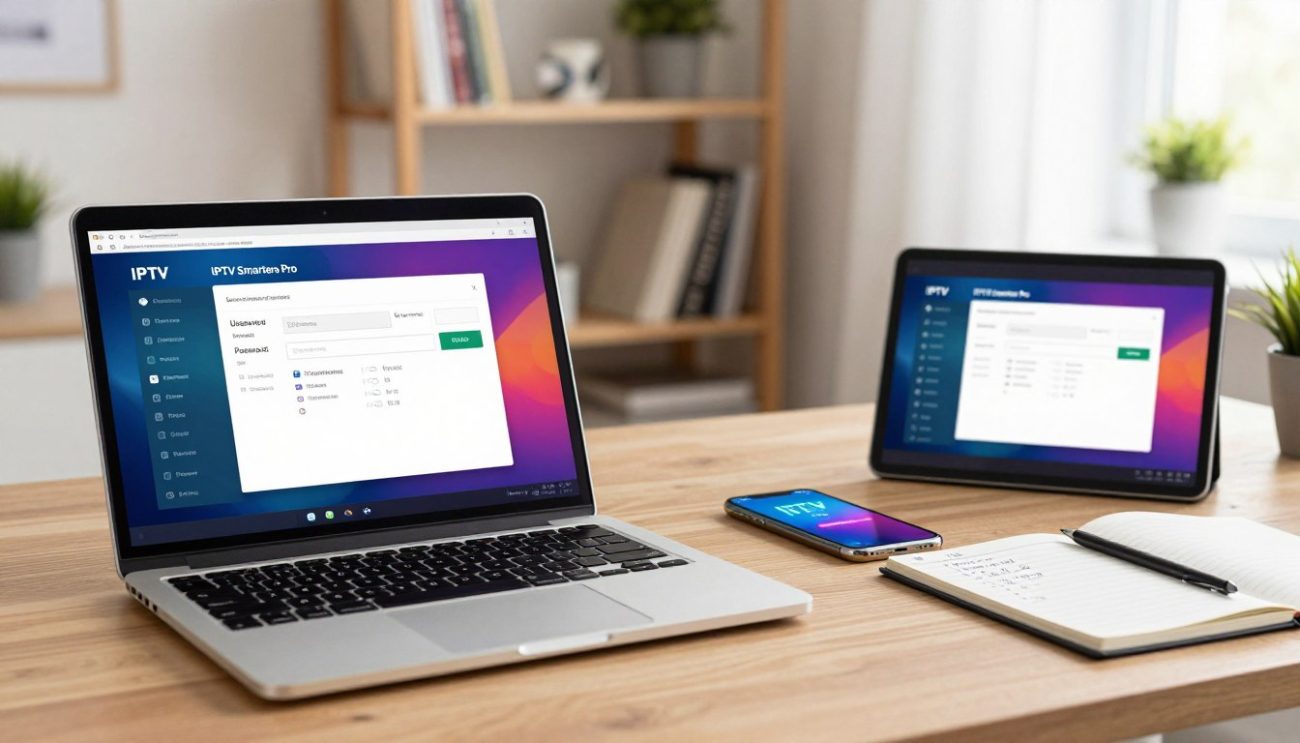
Entering Xtream Codes API Information
To configure Xtream Codes API, you’ll need to enter your server URL, username, and password. Here’s a step-by-step guide:
Finding Your Server URL
Your server URL is typically provided by your IPTV service provider. It’s usually in the format of http://example.com:8080.
Inputting Username and Password
Enter the username and password provided by your IPTV service provider. Ensure the credentials are accurate to avoid authentication errors.
Adding M3U Playlist URLs
M3U playlist URLs are another way to configure your IPTV service. To do this, you’ll need to obtain your M3U link and load it into IPTV Smarters Pro.
Obtaining Your M3U Link
Your IPTV service provider should provide you with an M3U link. This link is used to stream your IPTV content.
Loading the Playlist
Once you have your M3U link, you can load it into IPTV Smarters Pro. The app will then fetch your IPTV content and make it available for streaming.
Saving and Managing Your Configuration
After entering your IPTV service provider details, it’s crucial to save your configuration. IPTV Smarters Pro allows you to manage your configurations, making it easy to switch between different IPTV service providers or settings.
| Configuration Type | Description | Benefits |
|---|---|---|
| Xtream Codes API | Advanced API for IPTV streaming | Robust features, customization options |
| M3U Playlist URLs | Simple M3U link for IPTV | Easy to set up, straightforward |
Navigating the IPTV Smarters Pro Interface
To get the most out of IPTV Smarters Pro, it’s essential to familiarize yourself with its interface. The application’s design focuses on providing a seamless and intuitive user experience, making it easy to access various features and settings.
Main Menu Overview and Navigation
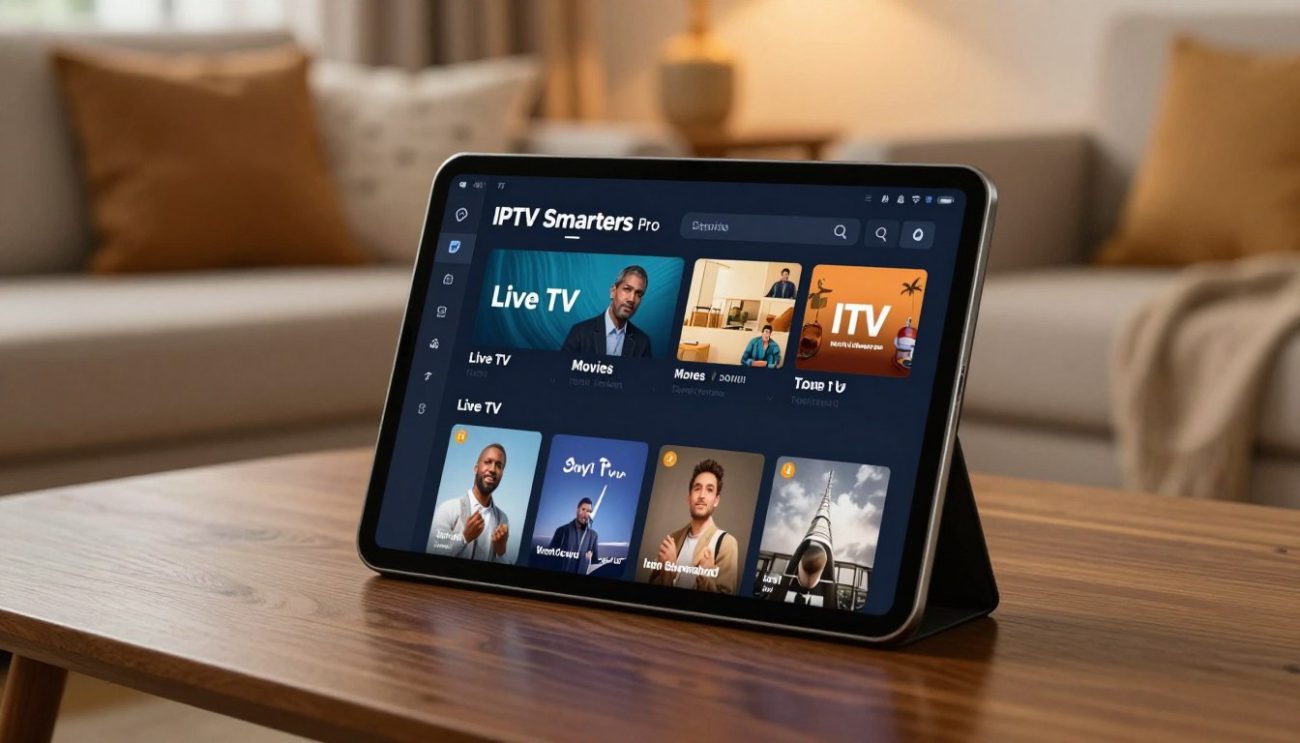
The main menu is the central hub of the IPTV Smarters Pro application. It provides quick access to different sections such as Live TV, VOD (Video on Demand), and Settings. Navigating through the menu is straightforward, allowing users to switch between different content types with ease.
Exploring the Live TV Section
The Live TV section is where you can access live television channels. This section is further categorized for easier navigation.
Channel Categories
Channels are organized into categories, making it simple to find content that interests you. Whether you’re looking for news, sports, or entertainment, the categorization helps in narrowing down your options.
EPG Guide Usage
The EPG (Electronic Program Guide) provides a schedule of upcoming programs for each channel. This feature is particularly useful for planning your viewing schedule in advance. You can check what’s currently airing and what’s coming up next on your favorite channels.
Accessing VOD and Series Sections
IPTV Smarters Pro also offers a vast library of VOD content, including movies and series. The VOD section is designed to be easily accessible, allowing users to browse through different genres and categories.
| Content Type | Description | Access Path |
|---|---|---|
| Live TV | Access to live television channels | Main Menu > Live TV |
| VOD | Video on Demand content | Main Menu > VOD |
| Series | Collection of series episodes | Main Menu > Series |
Settings and Preferences Menu
The Settings menu allows you to customize your IPTV Smarters Pro experience. You can adjust various preferences, such as video quality, to suit your internet connection and viewing preferences. Additionally, you can manage your account settings and access other configuration options.
By understanding and utilizing these features, you can enhance your overall streaming experience with IPTV Smarters Pro.
Customizing Your Streaming Experience
Customizing your IPTV Smarters Pro settings can significantly enhance your viewing pleasure. By tailoring the application to your preferences, you can enjoy a more personalized and seamless streaming experience.
Adjusting Video Quality Settings
One of the key aspects of customizing your IPTV Smarters Pro experience is adjusting the video quality settings. This ensures that your streaming is optimized for your internet connection.
Resolution Options
IPTV Smarters Pro allows you to choose from various resolution options to suit your internet bandwidth. Selecting the right resolution can help prevent buffering and ensure smooth playback.
Buffer Size Configuration
Configuring the buffer size is another crucial setting. A larger buffer size can help prevent interruptions by pre-loading more content, but it may also increase the delay before live content starts playing.
Setting Up Parental Controls
For households with children, setting up parental controls is an essential feature. IPTV Smarters Pro enables you to restrict access to certain content.
Creating PIN Protection
By creating a PIN, you can protect your settings and restrict access to mature content. This ensures that children cannot access inappropriate material.
Blocking Specific Content
You can also block specific channels or content types, providing an additional layer of control over what is available to viewers.
Creating and Managing Favourites Lists
Organizing your favourite channels or shows is straightforward with IPTV Smarters Pro. You can create and manage favourites lists, making it easier to access the content you enjoy most.
Changing Theme and Display Options
IPTV Smarters Pro also allows you to personalize the look and feel of the application. You can change themes and display options to suit your preferences, enhancing your overall user experience.
By following these customization tips, you can significantly enhance your IPTV Smarters Pro streaming experience, making it more enjoyable and tailored to your needs.
Common Issues and How to Fix Them
While IPTV Smarters Pro is designed to provide a seamless streaming experience, some users may encounter common issues. Fortunately, most of these problems have straightforward solutions that can be applied to get back to enjoying your favorite content.
App Won’t Load or Crashes Frequently
If IPTV Smarters Pro won’t load or crashes often, there are a couple of troubleshooting steps you can take. First, try clearing the app’s cache and data.
Clearing Cache and Data
To clear the cache and data on Android, go to your device’s Settings, then Apps, find IPTV Smarters Pro, and select Clear Cache and Clear Data. For Firestick, go to Settings, then Applications, and manage installed applications to clear data.
Note that clearing data will log you out, so you’ll need to re-enter your IPTV credentials.
Reinstalling the Application
If clearing cache and data doesn’t work, try uninstalling and then reinstalling IPTV Smarters Pro. This can resolve issues caused by corrupted files or incorrect installation.
Buffering and Playback Problems
Buffering and playback issues can be frustrating. These problems are often related to your internet connection or the app’s buffer settings.
Checking Your Internet Speed
Ensure your internet speed is sufficient for streaming. A minimum speed of 5 Mbps is recommended for HD content, but this can vary depending on the quality of the stream. You can check your internet speed using online speed test tools.
Adjusting Buffer Settings
Within IPTV Smarters Pro, you can adjust the buffer settings to improve playback. Increasing the buffer size can help if you’re experiencing buffering issues, but be aware that this may introduce a delay in live streams.
Login or Authentication Errors
If you’re having trouble logging in, first verify that your IPTV credentials are correct.
Verifying Credentials
Double-check your username and password. If you’re still having issues, try copying and pasting the credentials to avoid typos.
Contacting Your Provider
If your credentials are correct but you’re still experiencing login issues, contact your IPTV service provider. They can check if your subscription is active and if there are any issues on their end.
No Channels or Content Showing
If you’re not seeing any channels or content, there are a couple of potential fixes.
Refreshing Your Playlist
Try refreshing your playlist within the app. This can resolve issues if the playlist hasn’t updated correctly.
Checking Subscription Status
Ensure your IPTV subscription is active. An expired or suspended subscription will result in no channels or content being available.
By following these troubleshooting steps, most common issues with IPTV Smarters Pro can be resolved, ensuring a smooth and enjoyable streaming experience.
Tips for Optimal Streaming Performance
To enjoy uninterrupted streaming on IPTV Smarters Pro, it’s crucial to optimize your internet connection and app settings. A well-configured setup not only enhances your viewing experience but also ensures that you get the most out of your IPTV service.
Internet Speed Recommendations for Different Quality Levels
The quality of your streaming experience is heavily dependent on your internet speed. Different streaming qualities require different minimum internet speeds to function smoothly.
- SD (Standard Definition): 3 Mbps
- HD (High Definition): 5-10 Mbps
- Full HD: 10-15 Mbps
- 4K (Ultra High Definition): 25 Mbps or more
Ensuring your internet plan meets these requirements is essential for uninterrupted streaming.
Benefits of Wired vs Wireless Connections
When it comes to connecting your device to the internet, you have the option of using either a wired (Ethernet) or wireless (Wi-Fi) connection. While Wi-Fi offers more flexibility, a wired connection is generally more stable and less prone to interference.
| Connection Type | Stability | Speed | Interference |
|---|---|---|---|
| Wired (Ethernet) | High | Very Fast | Low |
| Wireless (Wi-Fi) | Moderate | Fast | Moderate to High |
Regular App Updates and Maintenance
Keeping your IPTV Smarters Pro app updated is crucial for optimal performance. Updates often include bug fixes, performance enhancements, and new features.
Enabling Auto-Updates
To ensure you’re always running the latest version of the app, enable auto-updates on your device. This way, you’ll never miss out on important updates.
Clearing Cache Regularly
Clearing the app cache regularly can help resolve issues related to buffering and playback. It’s a simple maintenance task that can significantly improve your streaming experience.
By following these tips, you can enjoy a smoother, more reliable streaming experience with IPTV Smarters Pro. Whether you’re watching live TV, on-demand content, or your favorite series, optimal streaming performance is just a few settings adjustments away.
Legal Considerations for IPTV in Canada
With the rise of IPTV in Canada, consumers need to be aware of the legal implications of using these services. IPTV, or Internet Protocol Television, has become a popular choice for streaming content, but its legal status can be complex.
Understanding IPTV Legality in Canada
In Canada, the legality of IPTV services is tied to the content they provide and how it’s distributed. Licensed IPTV providers obtain the necessary rights to broadcast content, making their services legal. However, some IPTV services may offer copyrighted content without proper authorization, which is illegal.
To ensure you’re using a legal IPTV service, look for providers that are transparent about their content licensing. A legitimate IPTV provider will have agreements with content creators and distributors, ensuring that the content is legally available.
Choosing Licensed and Legitimate IPTV Providers
When selecting an IPTV provider, it’s crucial to choose one that is licensed and legitimate. Here are some tips:
- Check for clear information about their content licensing agreements.
- Look for reviews and ratings from other users to gauge their reputation.
- Ensure they have a robust customer support system.
Protecting Your Privacy and Security
Using IPTV services can expose your personal data to potential risks. To protect your privacy and security:
- Use strong, unique passwords for your IPTV accounts.
- Keep your IPTV app and device software up to date.
- Be cautious when clicking on links or providing personal information.
VPN Considerations
A Virtual Private Network (VPN) can enhance your privacy and security while using IPTV services by encrypting your internet traffic. When choosing a VPN, consider factors such as server locations, speed, and logging policies.
Safe Streaming Practices
To stream safely, avoid using IPTV services that seem suspicious or offer unusually cheap deals. Always check the provider’s terms of service and privacy policy. Using a VPN and keeping your devices and apps updated are also key practices.
Conclusion
Setting up IPTV Smarters Pro on your preferred device is a straightforward process that unlocks a world of streaming possibilities. With this comprehensive guide, you’ve learned how to install and configure IPTV Smarters Pro on Android devices, Amazon Firestick, and Smart TVs, ensuring a seamless streaming experience.
The IPTV Smarters Pro setup conclusion marks the beginning of your streaming journey, where you can enjoy your favorite channels and content with ease. By following the steps outlined in this article, you’ve successfully completed the streaming setup summary, and you’re now ready to explore the vast offerings of IPTV Smarters Pro.
With its user-friendly interface and robust features, IPTV Smarters Pro provides an exceptional streaming experience. Whether you’re watching live TV, accessing VOD content, or managing your favorite channels, IPTV Smarters Pro is designed to meet your streaming needs. Enjoy your streaming experience with IPTV Smarters Pro.